Most coaches already have a website they like. It has their photo, their story, and the words they worked hard on. What it usually does not have is a way to actually book them. The contact form sends an email, the email starts a scheduling conversation, and four messages later somebody suggests Tuesday.
This guide closes that gap. You copy one piece of code from Grove and paste it into your Squarespace, Wix, or WordPress site, and a visitor can pick a session type, pick a time, and pay in one step. Grove gives you two ways to do it, a button or an inline embed, and the next section helps you pick. Grove is the layer that runs alongside the site you already have, not a replacement for it. Your website stays exactly where it is.
You do not need to be technical for any of this. There is no plugin to install, no file to upload, and no styling to match. The snippet Grove gives you is self-contained and inherits your site’s font, so the button looks like it belongs.
The terms you’ll see
| Term | What it means |
|---|---|
| Your Grove booking link | The web address of your booking page. Share it directly in an email or a bio, or use it as the destination for any button or menu item on your site. |
| Booking button code | A ready-made snippet of HTML that renders a styled Book a session button linking to your booking page. This is what you paste into your site. |
| Embed code | A one-line script snippet that renders your whole booking flow inline on your page, no redirect. The alternative to the button, pasted into the same kind of block. |
| Code block | The place a website builder lets you paste raw HTML. Squarespace calls it a Code Block, Wix calls it a Custom Embed, and WordPress calls it a Custom HTML block. |
| Session type | A single bookable service with a name, duration, price, and description. Your booking page lists the ones you have marked Active. |
| Bookable hours | The openings you publish. Clients only ever see times inside these hours, shown in their own timezone. |
Button or embed: pick what fits your site
Grove hands you both, side by side, bound to the same booking link. The difference is what your visitor experiences and what your site plan allows:
-
The button is a styled Book a session link. A visitor clicks it and lands on your Grove booking page. It is plain HTML, so it works on every plan of every builder, and it is the right first step: you can confirm the whole flow works before deciding anything else.

-
The embed renders the entire booking flow inline on your page, so a visitor picks a time and pays without leaving your site. It is a script, which matters on Squarespace: JavaScript in Code Blocks needs the Core plan or higher, so it will not run on the entry Basic plan.
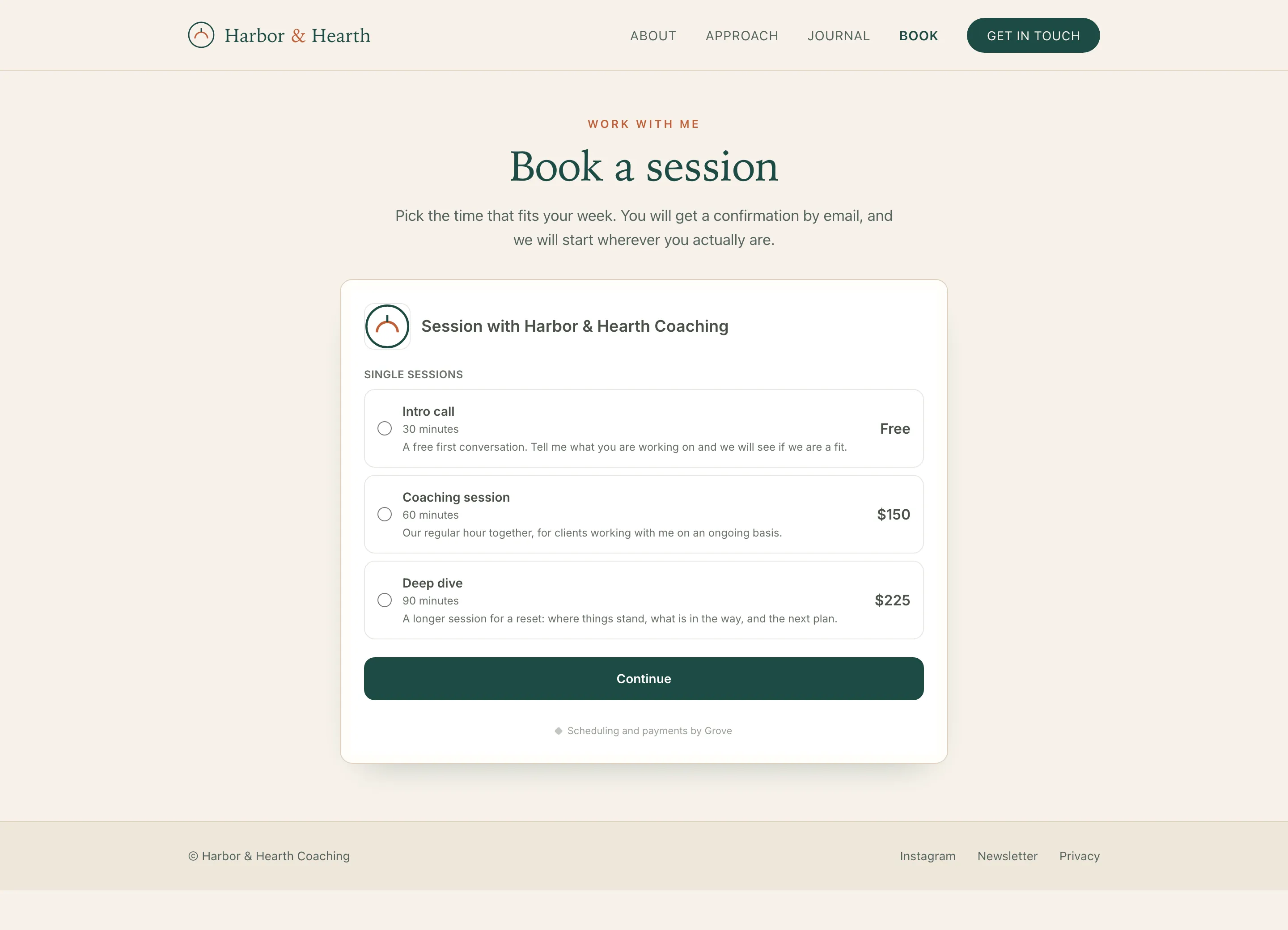
Steps 1 through 7 walk the button end to end; step 8 is the embed, pasted the same way. Switching later is a two-minute job.
Before you start
- Set up your pricing first. Your booking page shows the session types and packages you offer, so Grove hides the whole section until you have at least one active. If you have not built your catalog yet, Set up your pricing and get paid covers it, and that guide is the real prerequisite for this one.
- Set your bookable hours in Settings, under Scheduling & calendar. This is what decides which times a visitor is offered.
- Connect your Google account if you want your existing calendar to protect your time. It is optional, but it is the difference between Grove knowing you are busy and Grove not knowing.
- Have your website’s editor open and know how to reach the page you want the button on.
- Budget about ten minutes, most of it finding the right block in your site builder.
Steps
-
Open your booking settings in Grove. Go to Settings and find the Scheduling & calendar section. Inside the Booking link card, scroll to Add booking to your website. The description tells you what it is for: “Put your Grove booking page on your own website: Squarespace, Wix, WordPress, or anywhere else.”
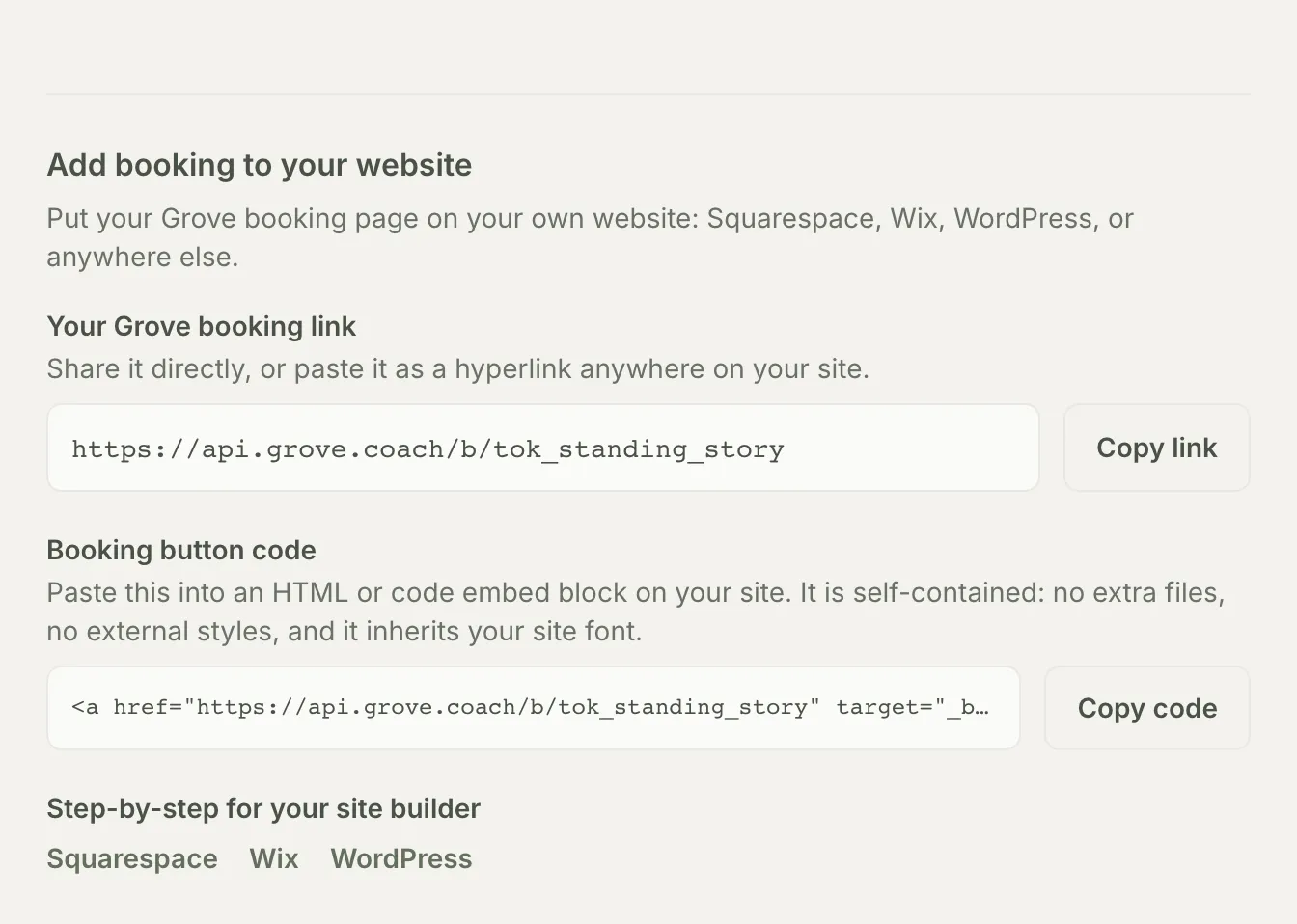
Gotcha: If you see Set up your pricing first instead of your link, your catalog has no active session types yet. Click Set up pricing, add one, and come back. Grove hides the link on purpose, because sharing it early publishes an empty booking page.
-
Copy the booking button code. Under Booking button code, click Copy code. The button label changes to Copied! so you know it worked. This snippet is self-contained: no extra files, no external stylesheets, and it inherits your site font. If you would rather link an existing button you already designed, copy Your Grove booking link instead and skip to step 6.
-
If you use Squarespace, add a Code Block. Edit the page, click an insertion point, and choose Code from the block menu. Paste the snippet into the block, replacing the placeholder content, and click outside the block to close it. Squarespace’s own walkthrough is Adding a code block, which stays current with their editor.
Tip: Code Blocks exist on every Squarespace plan, and the button is plain HTML, so it works in a Code Block on any plan. If you would rather match your theme’s own button styling, use Squarespace’s Button block instead and paste Your Grove booking link as its destination. Same result.
-
If you use Wix, add a Custom Embed. In the editor, click Add Elements, then Embed Code, then Embed HTML. Drop the widget where you want the button, click Enter Code, and paste the snippet. Wix documents this at Embedding custom code. Resize the widget box so it fits the button, because Wix gives embeds a fixed frame that can clip.
-
If you use WordPress, add a Custom HTML block. In the block editor, click the + to add a block, search for Custom HTML, and paste the snippet in. Click Preview on the block to confirm the button renders before you leave the editor. If your theme uses the older classic editor instead, switch from the Visual tab to the Text tab and paste it there.
-
Publish the page and click your own button. Publish, then open the live page in a normal browser tab and click Book a session. Your Grove booking page opens with your active session types and packages listed. Walk it yourself once, all the way to the time picker, and check the times look like hours you actually want to work.
Tip: Test on your phone too. Most coaching sites get more mobile visitors than desktop ones, and this is the fastest way to catch a button that ended up too small to tap.
-
Confirm your calendar is protecting your time. If you connected Google, Grove never offers a time you are already busy, and it adds each new booking to your calendar as it comes in. Put a fake block on your Google Calendar for tomorrow morning, reload your booking page, and watch that time disappear from the options.
Gotcha: This only applies once your Google account is connected. Without a connection Grove cannot see your other commitments, so it will happily offer a slot you are already teaching in. Connect from Settings > Google Account.
-
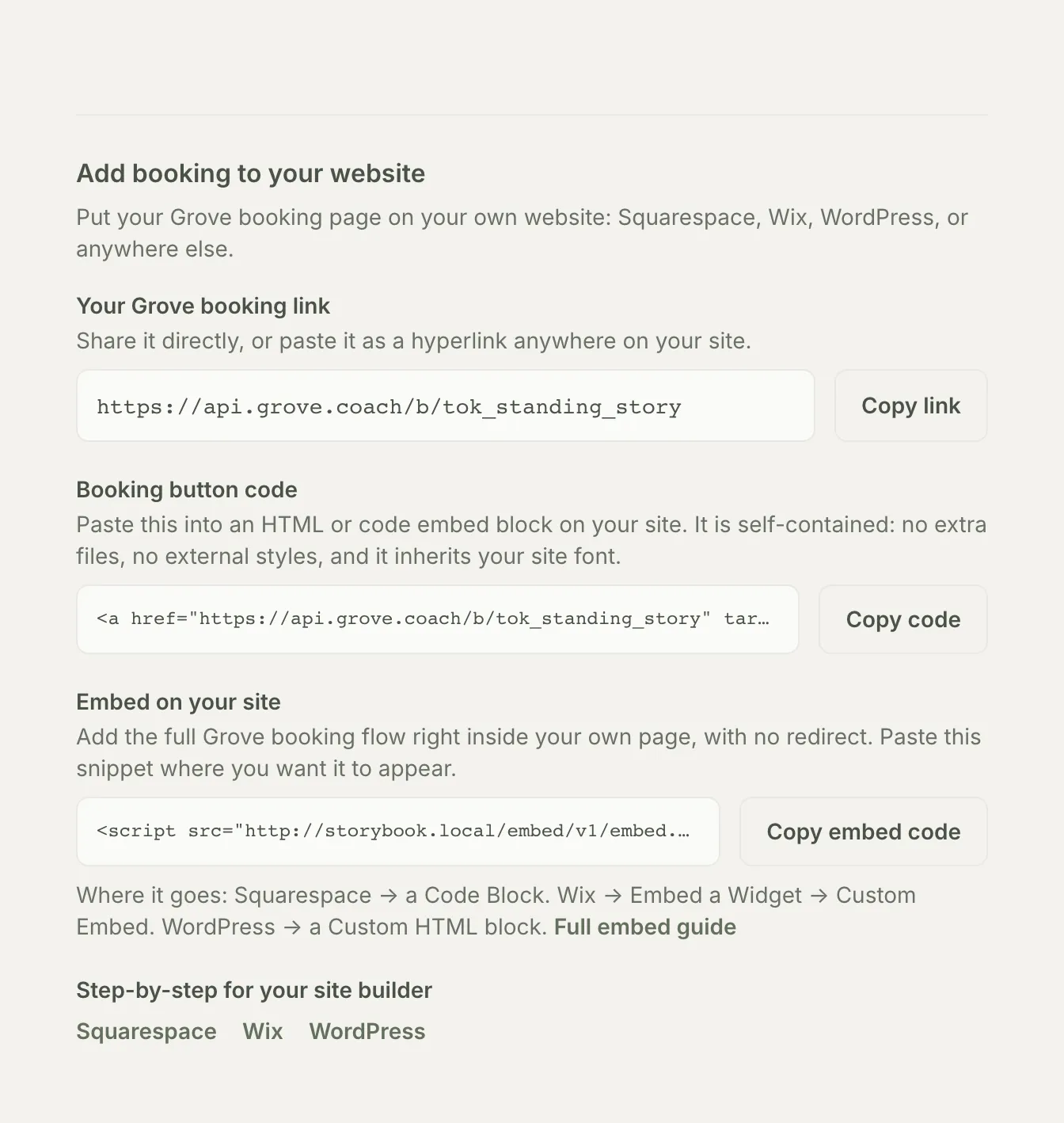
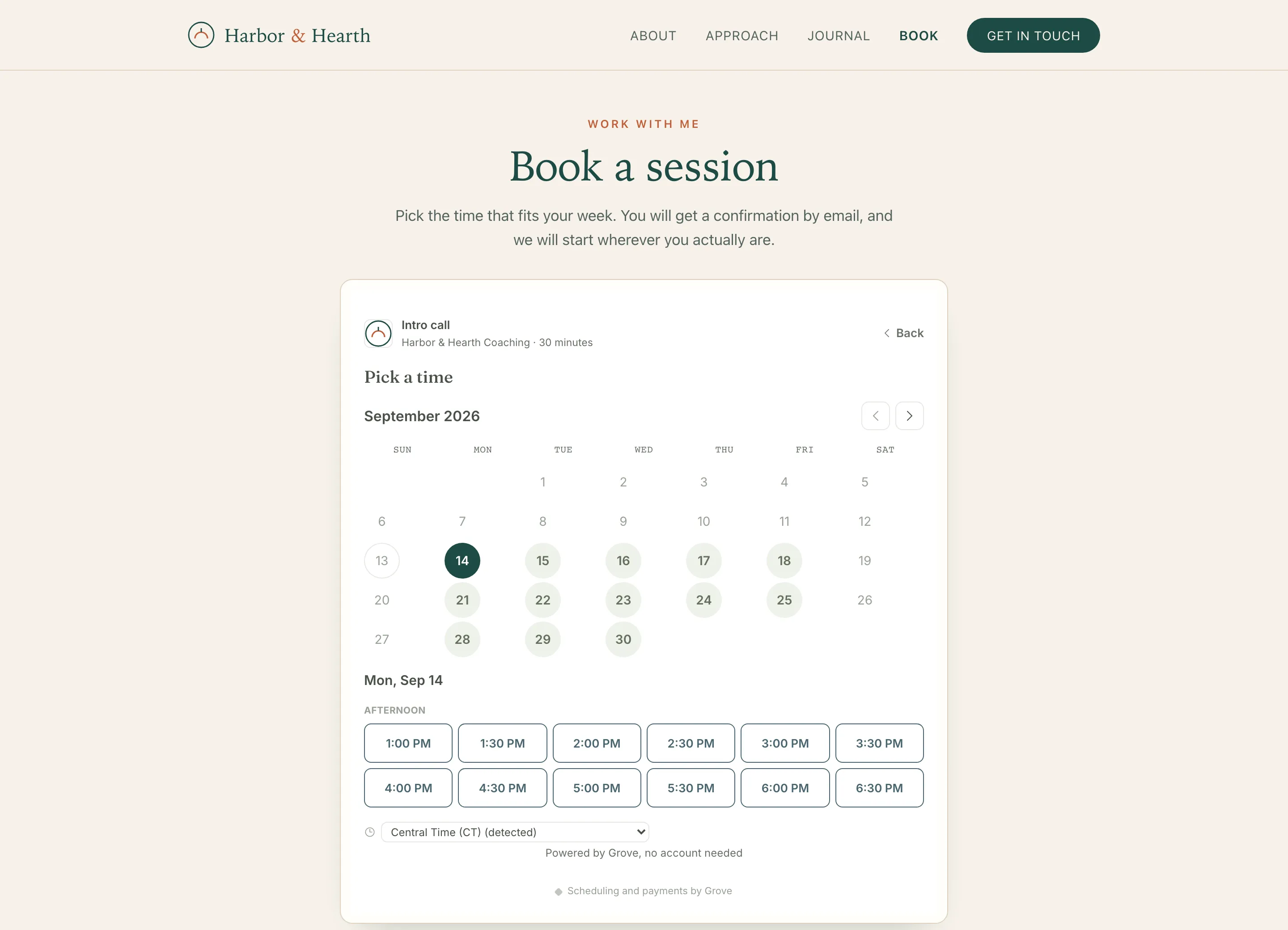
If you chose the embed, paste it the same way. Back in the same Grove section, the Embed on your site subsection holds a one-line script snippet. Click Copy embed code and paste it into the same kind of block you used for the button: a Squarespace Code Block, a Wix Custom Embed, or a WordPress Custom HTML block. Publish, and your whole booking flow (session types, time picker, payment) renders right there on your page, with no redirect.
Your visitor picks the session, then the time, then pays, all without the page ever changing:
Gotcha: If the embed shows nothing on Squarespace, it is almost always the plan limit from the button-or-embed section above: JavaScript in Code Blocks runs on the Core plan and higher, not on Basic. The button is a plain link, so it is never affected.
If something looks wrong
- The button shows up as plain text, not a button. The snippet landed somewhere that escapes HTML rather than rendering it. In WordPress, that usually means it went into a Paragraph block instead of a Custom HTML block. In Squarespace, check that the Code Block’s display setting is not set to show source.
- The booking page loads but lists nothing. Your session types exist but none are marked Active. Open Billing > Pricing and check their status.
- The times offered are wrong, or there are none. Your bookable hours are the source of that list. Open Settings > Scheduling & calendar and check both the hours and Your timezone, since the hours are interpreted in your timezone and displayed in the client’s.
- You already use Calendly or Acuity and are not ready to move. You do not have to. Grove’s booking page is optional and the two can coexist while you decide; see the FAQ on keeping your existing scheduler.
What’s next
Your website can now take a booking on its own, as a button or as a full inline flow. The next thing worth doing is making sure every booking arrives with the context you need instead of just a name on a calendar: Set up intake forms attaches a form to a session type so it is filled in before the session starts, and Show up prepared for sessions is where that context turns into a better first meeting.