A health coaching intake form is the first real signal you get from a client: their health history, their goals, and what’s actually going on, all before your first session together. Grove lets you build one once and reuse it for every client. You also choose how it gets filled in: your client completes it themselves, or you enter their answers from an earlier conversation. Either way, their consent comes first. If you haven’t invited your first client yet, Invite and onboard your first client covers intake as step 3 of that flow. This guide goes deeper on building the form itself, and on where those answers actually pay off.
The real payoff isn’t the form. It’s what happens after. Your client’s answers land on their Intake tab, you get an email the moment they submit, and the parts that matter most resurface on their own the first time you open session prep for that client, without you going looking for them. Reviewing a client’s materials before a session is a named coaching competency, so this is also the NBHWC session-preparation standard made routine; see how intake forms support NBHWC best practices below.
The terms you’ll see
| Term | What it means |
|---|---|
| Health Coaching template | Grove’s built-in intake template: sections for Profile, Medical and Health History, Goals and Mindset, Nutrition, Movement, Stress and Sleep, and Consent & Agreement. Start from it and edit freely, or build a blank form instead. |
| Add Field | The button in the form builder that opens the Add a Field panel: a suggested-question library organized by category, plus a Blank Field option in any of Grove’s 12 field types. |
| Consent attestation | Your confirmation, recorded before you enter a client’s health data yourself, that you have their consent to store it in Grove. Asked once per client, and only while they’re still Draft or Invited. |
| Collection source | How a client’s intake data got into Grove: entered by coach, submitted by client, or imported from CSV. Shown at the top of their Intake tab. |
Before you start
- Migrating a whole roster from another system? Import your existing client roster first; CSV import handles contact info, and this guide covers the health data half.
- Decide who will fill it in: your client, or you, transcribing an earlier conversation with their consent.
- The Health Coaching template covers most general wellness intake needs (profile, medical history, goals, nutrition, movement, stress and sleep); build a blank form instead if your practice needs something different.
- Budget about ten minutes to shape your first form. You’ll reuse it for every client after that.
- Have a client in Draft or Invited status ready if you want to send or enter intake data right away. See Invite and onboard your first client if you haven’t added one yet.
Steps
-
Open Settings and click Manage Forms. From Settings, find the Intake Form card and click Manage Forms. This takes you to your intake form list, where every form you’ve built lives. You can build more than one, say a different intake for a different kind of client; the same create buttons stay at the top of the list once your first form exists.
-
Start from the Health Coaching template, or build a blank one. With no forms yet, Grove offers two paths. Start from Template loads the Health Coaching template with its seven sections ready to edit: Profile, Medical and Health History, Goals and Mindset, Nutrition, Movement, Stress and Sleep, and Consent & Agreement. Create Blank Form starts you with one empty section and nothing assumed.
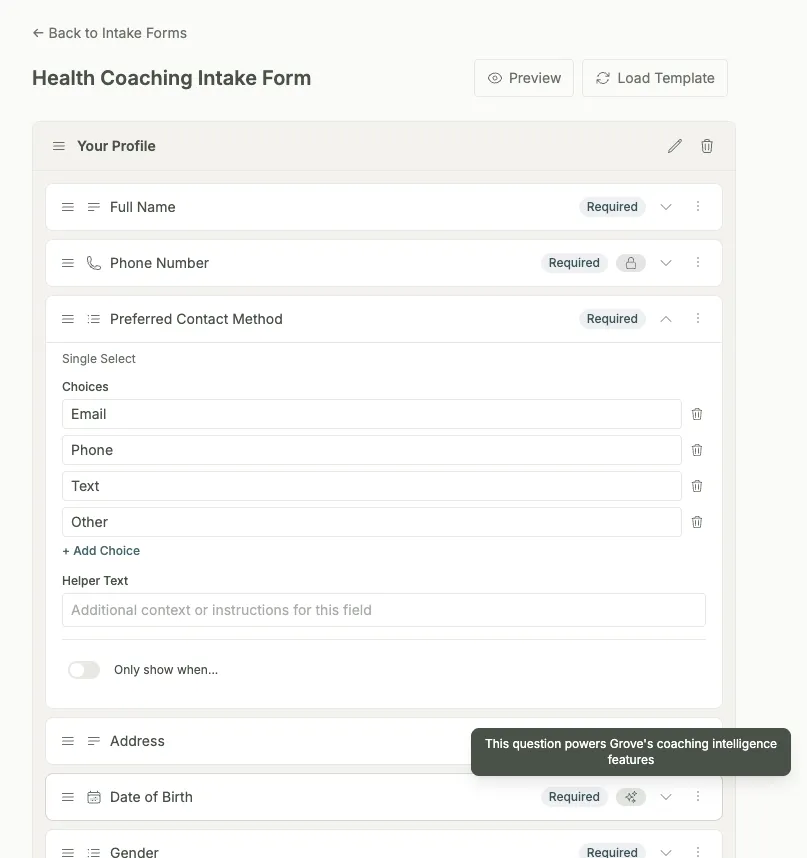
Tip: You can mix the two. Start from the template, delete what you don’t need, and add your own sections and questions on top.
-
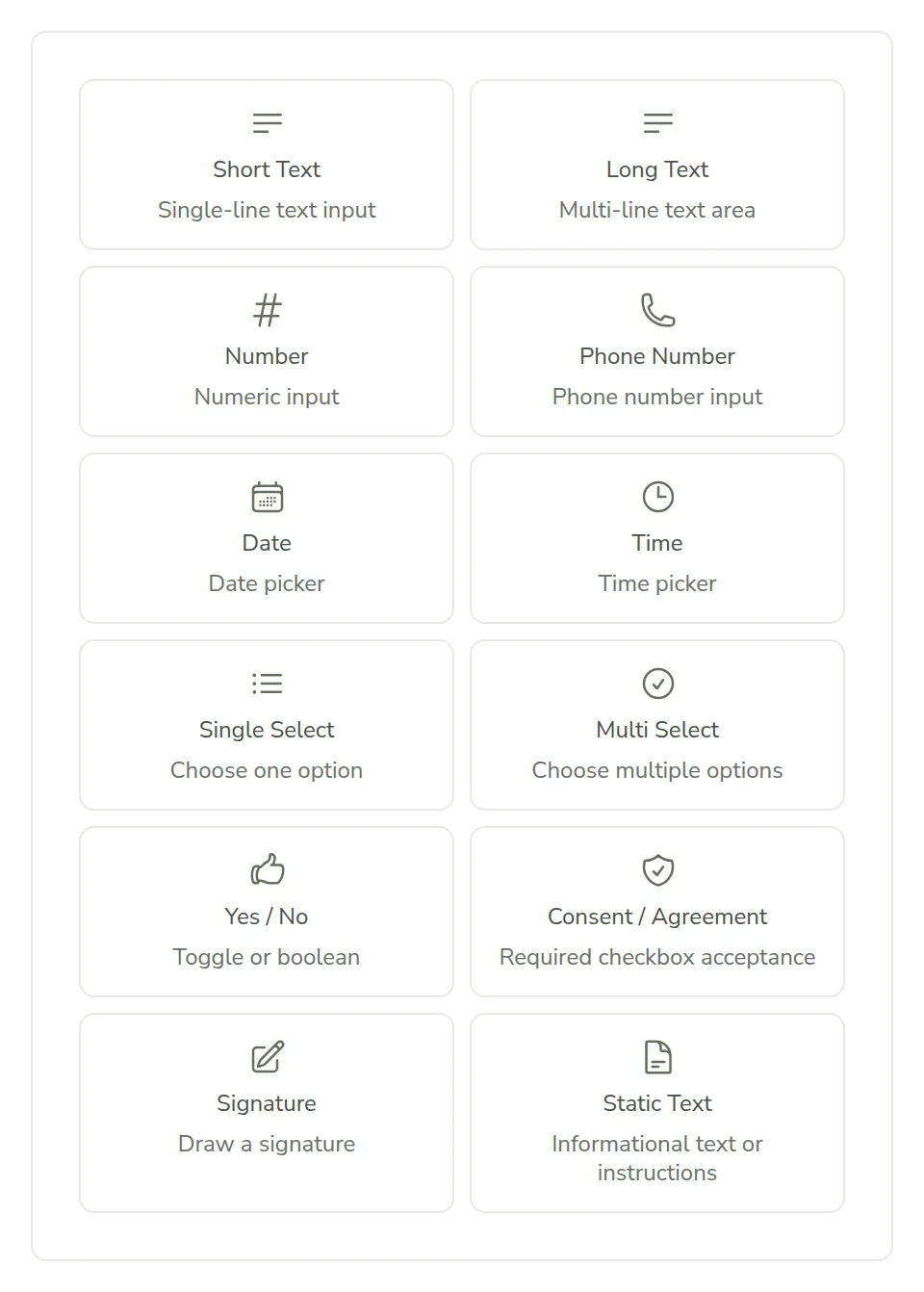
Add fields from the suggested-question library, or build your own. Click Add Field to open a library of pre-built questions with sensible field types already chosen, organized by category: Profile Information, Medical & Health, Goals & Mindset, Nutrition, Movement & Exercise, Stress & Sleep, and Consent & Agreement. Prefer to write your own? The same panel’s Blank Field option opens Grove’s full toolbox of 12 field types, from Short Text and Number to Signature and Consent / Agreement.
Gotcha: forms are entirely optional. A client with no intake data still gets full check-ins, habits, goals, and sessions; session prep just draws its suggestions from those instead. See do all my clients need intake data?
-
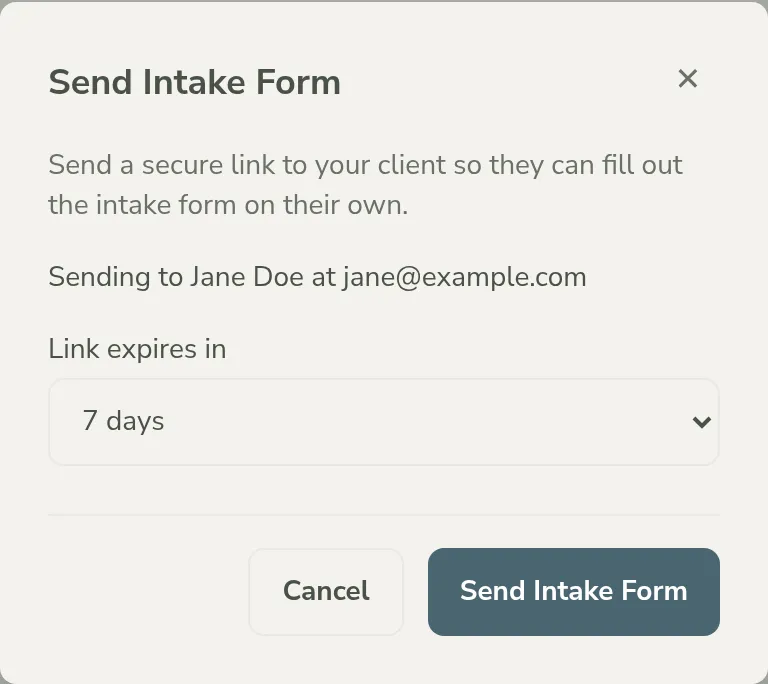
Send it to your client. On the client’s Getting ready checklist, find the Collect intake data step and click Send intake form. (If it says Set up intake form instead, you don’t have a form yet; the link takes you back to the builder.) Grove opens a dialog confirming who the link goes to and how long it stays live (plus an Intake form dropdown to pick which form, if you’ve built more than one), then emails your client a secure link they can complete on their own time. Once it’s sent, Copy intake link appears in the same spot so you can also drop the link into a text or a DM. That’s an extra channel alongside the email, not a way to skip it.
Gotcha: if a client fills out the form more than once, their profile just updates with the latest answers; the earlier response is kept in history, not lost. See what happens if a client fills out the form more than once?
-
Or enter it yourself, with their consent. Prefer to transcribe an earlier conversation instead of sending a link? Click Enter intake data on the client’s Intake tab. Grove asks for your consent attestation first: check the box confirming you have this client’s consent to store their information, then click Start Intake. The same form opens for you to fill in on their behalf.
Heads up: this consent step only appears for clients who haven’t accepted their Grove invite yet (Draft or Invited). Once they join Grove themselves, they consent to its terms directly, so you won’t see the prompt again for them. See why don’t I see the consent prompt for all my clients?
-
See where it landed. Open the client’s profile and click the Intake tab. Their answers appear organized by section, with a line at the top showing how the data was collected (entered by coach, submitted by client, or imported from CSV) and when. If you have more than one intake form, a dropdown above the answers switches between them, already set to the form this client answered.
Tip: got something wrong, or need to update an answer? Click Edit on the Intake tab to reopen the form with the existing answers pre-filled. The previous version is kept in the response history. See can I edit a client’s intake data after it’s saved?
-
Get notified the moment they submit. When a client completes their intake form through the secure link, Grove emails you with their name and a direct link to their Intake tab, so you can review the answers while they’re fresh.
-
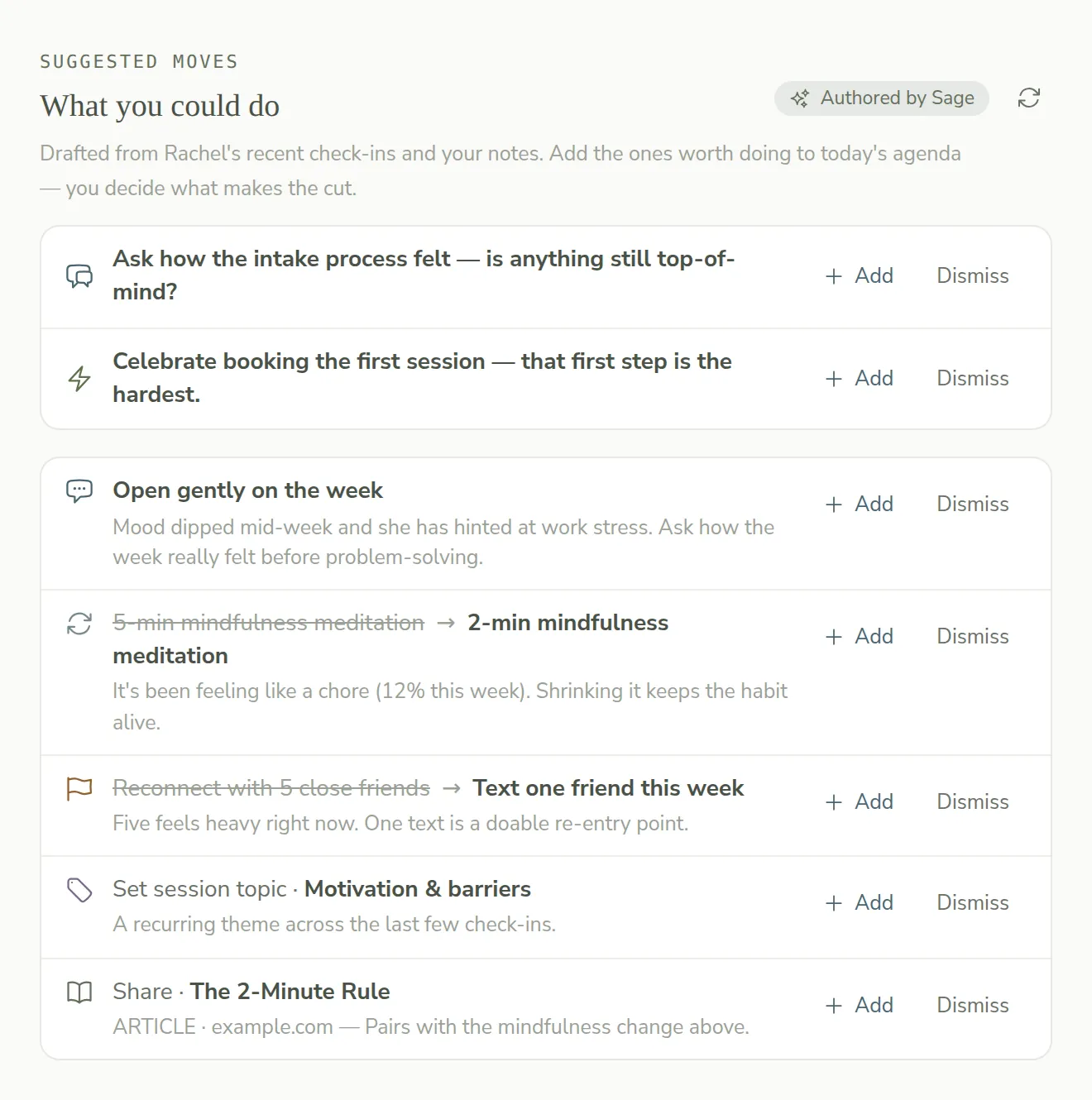
Watch it pay off in session prep. Open that client’s session prep and their answers are already at work. An Intake Data card holds their full responses, and anything worth raising surfaces on its own: a Watch for note in What matters now, or a ready-made conversation starter in Suggested moves, drafted the same way as everything else Sage prepares for you.
How intake forms support NBHWC best practices
Building and reviewing intake is not just paperwork; it maps onto real competencies in the NBHWC Content Outline (2026-2030). Following the flow in this guide means those standards are practiced by default, not remembered on top of everything else.
- Review available client materials (1.4.1). Intake is the first client material you review, gathered once instead of pieced together from a phone call or a paper form, and it resurfaces automatically in session prep before every session that follows.
- Client’s own goals (3.9.1). The Goals and Mindset section asks why their health goals matter to them, in their own words, before you’ve set a single goal for them in Grove.
- Ethics and professional practice (Domain 4). Entering a client’s health information yourself is gated behind your own consent attestation, and the self-fill link lets a client consent to Grove’s terms directly instead of you attesting on their behalf.
None of this replaces the conversation. An intake form tells you what to ask about; it’s still your judgment that decides what matters in the room.
What’s next
Once a client’s intake is in and their session prep already knows about it, the workflow that keeps paying off is the one you run every week: read the Daily Pulse, work Talking Points into an agenda, and respond to every check-in. See Show up prepared: session prep with Sage for that whole ritual, and Run the weekly rhythm (check-ins as dialogue) for the daily habit that feeds it. If you’re still setting a client up for the first time, Invite and onboard your first client is where intake fits into the onboarding flow as a whole.