
From recording to session note in one paste
Open a client's notes, choose Transcript, and paste or upload the transcript from whatever recorder you already use: Fathom, Granola, Otter, anything that produces text. Sage drafts a session note that leads with the commitments made, the decisions reached, and what to pick up next session, then the detail behind them. The draft opens in an editor, and nothing saves until you confirm.
Try Grove →The recording tools got good, and now the transcripts pile up. An hour of conversation sits in another tab as a wall of text, and turning it into a session note you can actually coach from is its own job after the job. Grove closes that gap: paste the transcript, get a draft that leads with commitments and next steps, edit it into your own words, and save it where your prep can use it.
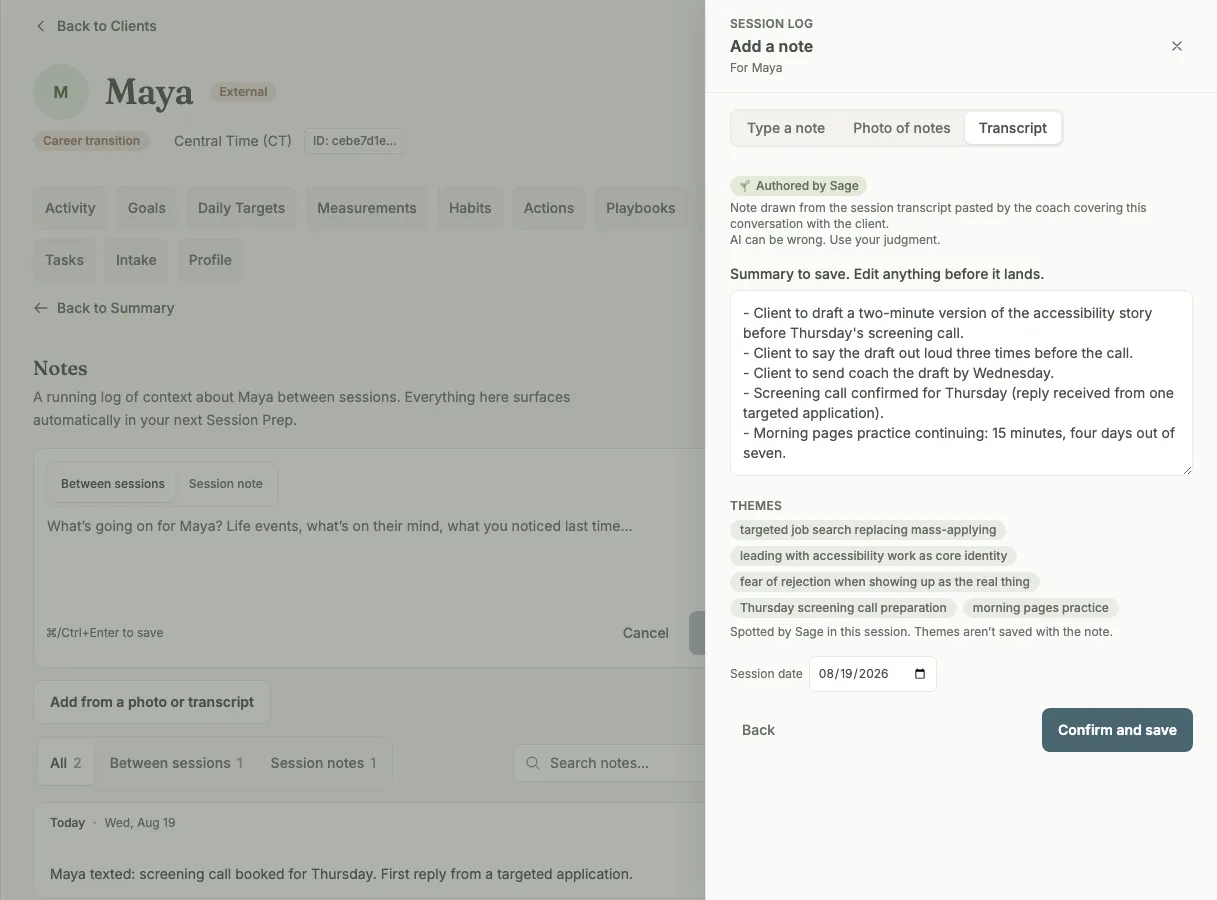
Paste the transcript and Sage drafts the note, commitments first. You edit before it saves.
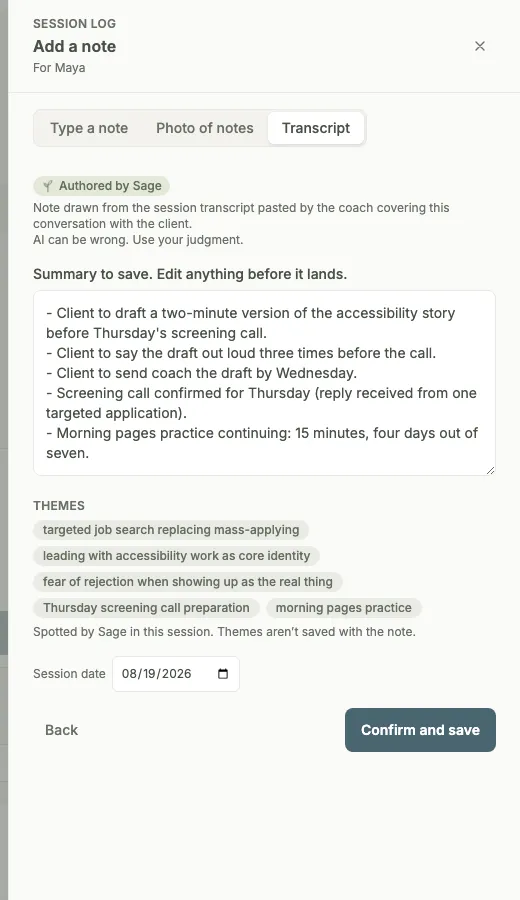
Every draft is labeled Authored by Sage, and nothing lands until you confirm.
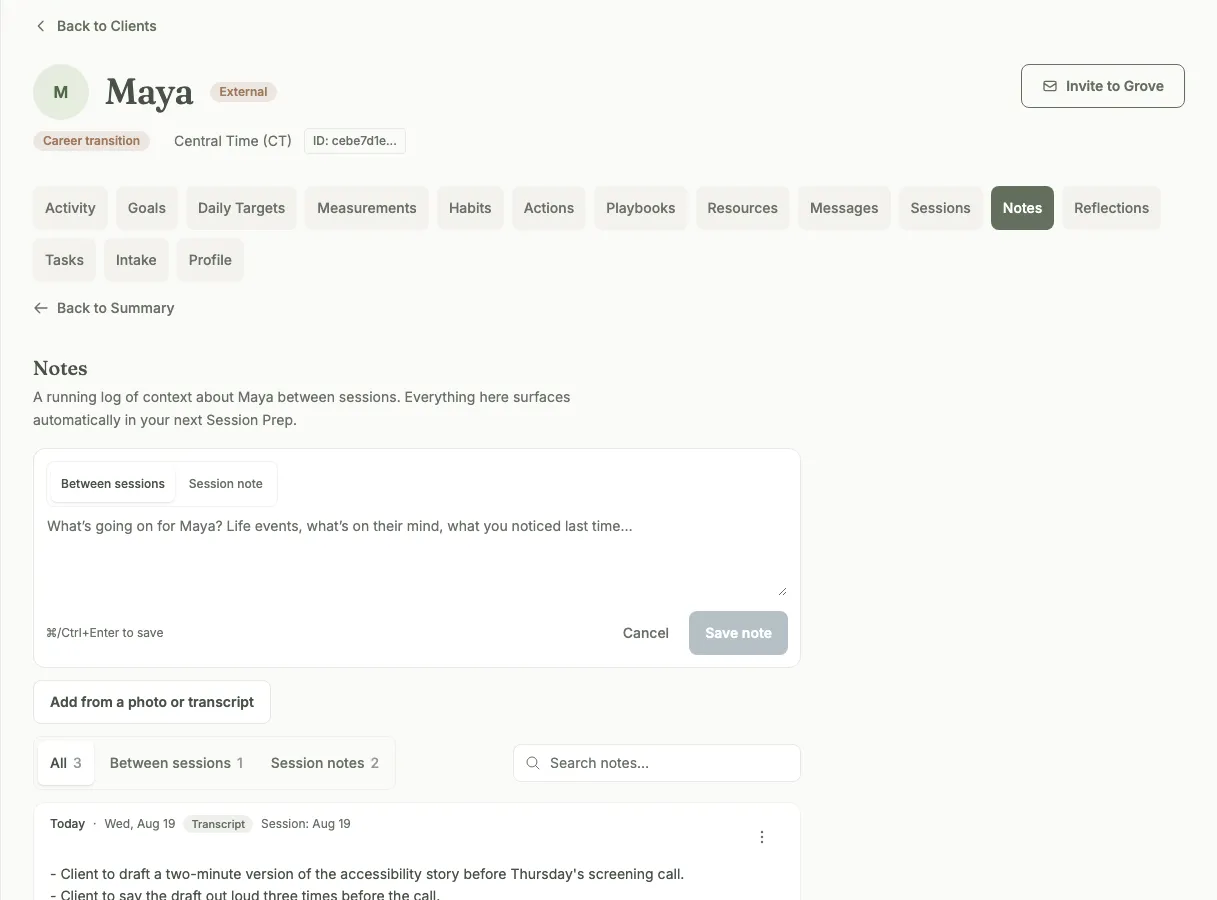
Saved notes keep their source tag on the timeline and feed your next session prep.
How transcript import works
- Paste or upload a transcript from any recorder you already use: Fathom, Granola, Otter, or anything else that produces text. Open a client's notes, choose Transcript, and drop it in.
- Drafts lead with what you need next time: the commitments your client made, the decisions you reached together, and what to pick up next session, followed by short detail paragraphs.
- The draft opens in an editor with a character counter. Edit it, cut it, rewrite it in your own words. Nothing saves until you confirm.
- Attribution stays straight: the draft keeps clear who said what, and Sage never adds anything that is not in the transcript.
- Long sessions summarize in one pass. If a transcript ever has to be cut to fit, the draft says so plainly instead of quietly working from less.
- Link mode: save a pointer to the recording without Grove reading it, when you want the reference on the timeline but the content elsewhere.
- A Photo option for the notebook crowd: photograph a handwritten page and review the transcription line by line before anything saves.
- Saved notes land on the client timeline with a source tag, so you always know where a note came from, and they feed Sage's prep for the next session.

Transcript import fits coaches who record their sessions, and any coach whose notes currently live in a recorder's export folder.
- Import your client roster → — the step-by-step walkthrough for bringing an established practice into Grove, transcripts and notebooks included.
- Set up Sage → — how consent flags work, what Sage reads, and how to turn on the drafting and prep that transcripts feed.
- Show up prepared: session prep with Sage → — what the prep view does once your session notes are feeding it, from the morning Daily Pulse to a built agenda.
Common questions
Which recording tools does this work with?
Any of them. Grove does not connect to a specific vendor; it takes the transcript itself. If your recorder produces text (Fathom, Granola, Otter, a raw export from a video call), paste it in or upload the file and the draft comes back the same way. Your recording stack stays yours.
Will Sage put words in my client’s mouth?
No. The draft is built only from what is in the transcript, with attribution kept straight: what your client committed to reads as their commitment, and what you offered reads as yours. Sage never invents content that is not in the transcript, and the draft is labeled as authored by Sage until you have edited and confirmed it. The note that saves is the one you approved.
What about long sessions?
A long session summarizes in one pass; you do not need to split the transcript. In the rare case a transcript has to be cut to fit, the draft tells you so plainly, so you can decide whether the summary covers what mattered or whether you want to add to it yourself.
What if I do not want Grove reading the transcript at all?
Use link mode: it saves a pointer to the recording on the client timeline without Grove reading the content. And summarizing is always gated by your consent flags: what Sage reads for a client is what you have turned on for that client, nothing more. The transcript-to-note step never writes to the record on its own.
Does my client need to be on Grove for any of this?
No. Transcript import works for every client on your roster, including the ones you track without an invite. If a client would rather not use an app at all, their transcripts and notes still live alongside every other client's, and Sage still preps their sessions from your records. You stay organized in one place; whether they ever log in is up to them.
Where does the note end up?
On the client timeline, alongside typed notes and everything else in the record, with a source tag that shows it came from a transcript. From there it works like any session note: the next time you open that client, it is part of the session prep Sage builds.
Related features
Track your existing clients
Transcript import works from day one for the clients you track without an invite: your recordings become their record.
Learn more →Session prep
Where the saved notes go to work. Open a client and the next session is already pulled together from what you captured.
Learn more →Sage, your assistant coach
The assistant coach drafting the note: Sage summarizes what was said, and you decide what the record keeps.
Learn more →
Put your recordings to work
Start free on yourself. No clients to set up and no credit card, so you experience what your clients will before you invite anyone in.
Try Grove →