
Your sessions, where you already look
Connect Google Calendar once in Settings. From then on, every coaching session you schedule in Grove lands on your calendar the moment you save it, moves when plans change, and clears when you cancel. Your client gets a real invite, so you are both looking at the same time.
Try Grove →A coaching practice runs on two calendars: the schedule your sessions live in, and the calendar you actually check, next to school pickup and the dentist. Keeping them matched by hand is retyping, and retyping is how double bookings and missed sessions happen. Grove writes every session to your Google Calendar for you, so the calendar you trust stays right on its own.
Your Google busy times sit on your Grove schedule, and conflicts get flagged.
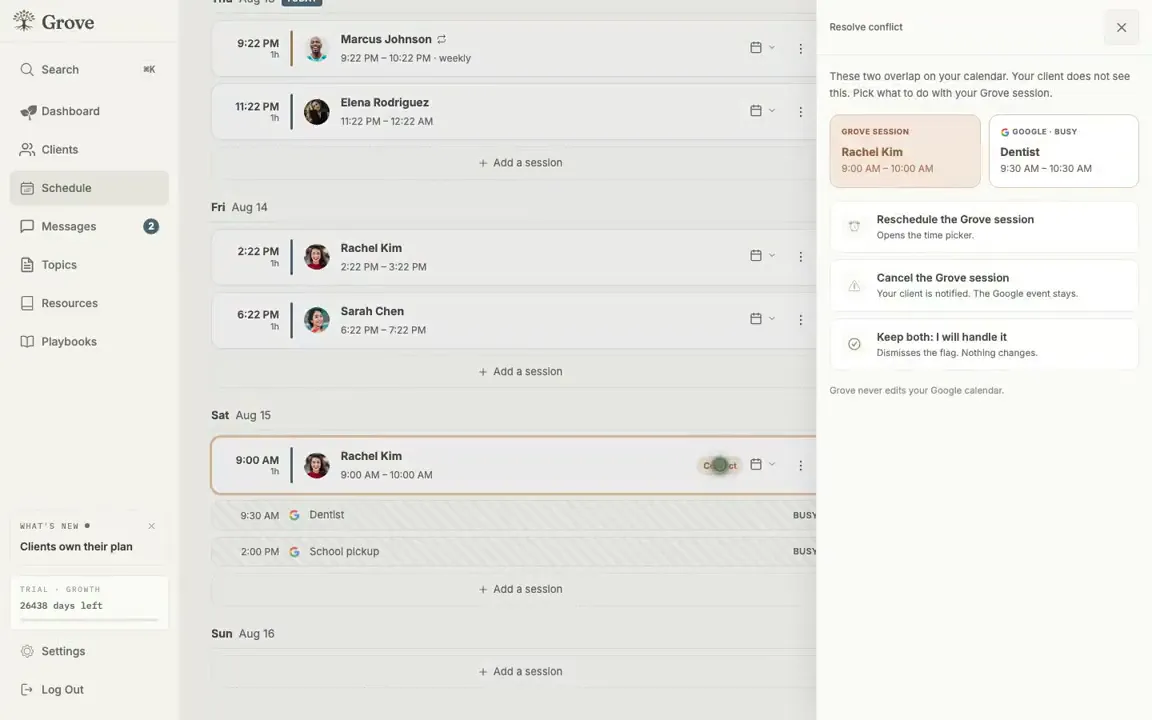
When a session collides with your life, resolve it in one click. Grove never edits your Google calendar.
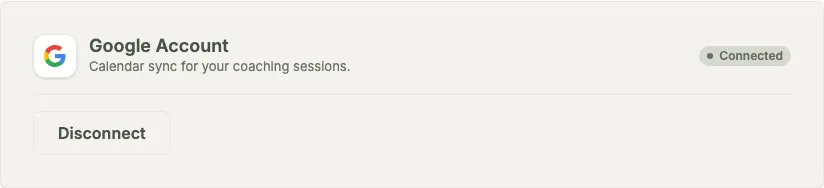
Connect once in Settings. One permission: managing calendar events, nothing else.
How Google Calendar sync works
- Connect once in Settings. Grove asks Google for a single permission, managing calendar events, and nothing else.
- Every session you schedule lands on your Google Calendar the moment you save it: titled with your client's name, at the right time in the right timezone, with a link back to their page in Grove.
- Reschedules move the event. Cancellations remove it. No copying by hand, no stale entries left behind.
- Your client's email goes on the event as an attendee, so Google sends them a real invite and keeps them updated when a session moves.
- Recurring sessions sync as recurring events, matching the weekly cadence you set in Grove.
- Your Google busy times show up on your Grove schedule as read-only blocks, and a session that collides with one gets flagged so you can reschedule before it becomes a double booking.
- Need a video link? Flip the Google Meet toggle when you schedule and Google attaches a Meet link to the event. You can set a default in Settings.
- Disconnect any time in Settings. Grove deletes its connection tokens and stops writing to your calendar.

Google Calendar sync is for any coach whose week lives in Google Calendar. It pairs naturally with the session prep that is waiting in Grove when the calendar reminder fires.
Common questions
What exactly shows up on my calendar?
Each Grove session becomes a normal Google Calendar event: "Coaching session with" your client's name, at the session time in the session's timezone, with a link back to that client in Grove. When you reschedule in Grove the event moves; when you cancel, it disappears.
Does my client get the invite?
Yes. Your client's email is on the event as an attendee, so Google sends them the invitation and any updates when the session moves or is canceled. Both of you are looking at the same time, in your own calendars.
Do I have to sign in to Grove with Google?
No. The calendar connection is its own secure Google sign-in, separate from how you log in to Grove. Whether you sign in with Google or with an email and password, you can connect any Google account you like from Settings.
What can Grove see or change in my Google account?
Only calendar events. The connection uses Google's calendar events permission and nothing broader, and Google reviewed and verified Grove for that scope. Grove stores the connection tokens encrypted and deletes them when you disconnect.
Is it two-way?
Writes run from Grove to Google. Schedule, reschedule, and cancel in Grove and your calendar stays right. Editing the Google event directly does not change the session in Grove, so make schedule changes in Grove. Grove also reads your busy times, so your Google events show on your Grove schedule and conflicts get flagged, but Grove never edits your Google calendar.
What if I use Apple or Outlook calendars?
Native sync is Google Calendar first. Session confirmation emails include a calendar file (ICS) your client or you can add to Apple, Outlook, or any other calendar app. If native syncing to another calendar would change how you work, email hello@grove.coach and tell us which one so we know to weight that decision.
Related features
Session prep
The session on your calendar comes pre-prepped in Grove: talking points, recent check-ins, and what you said last time.
Learn more →Session reflection
After the session ends, a private moment to name how it landed before you move to the next block on your calendar.
Learn more →Client messaging
When plans change, the reschedule conversation happens in Grove and your calendar follows automatically.
Learn more →
Put your sessions on your calendar
Start free on yourself. No clients to set up and no credit card, so you experience what your clients will before you invite anyone in.
Try Grove →